Revenue leakage: audit manual blocks and discounts in 2 tabs

In a 100-room portfolio, revenue rarely disappears in one big hit. Revenue leakage happens quietly: a room blocked for "repairs" that finished three weeks ago, a block added for an owner's visit that nobody removed, a 15% discount given to close a booking in a hurry. Each one is small. Together they can cost an operator 1-3% of annual rent - and because none of them looks like an error, nobody goes looking.
VIVIN's Audit page brings every manual block and every discount into one place, with who created it, why, and what it's worth. It sits in VIVIN's property management software next to the sales and analytics tools, and it's built for coliving, student housing and mid-term operators who want a 20-minute monthly review instead of a year-end surprise.
What causes revenue leakage in a rental portfolio?
- Scattered records - blocks live on each unit's calendar, discounts on each booking's payment plan, with no natural place to see them all.
- Things that look intentional - an unavailable unit doesn't raise an alarm the way an unpaid invoice does.
- Lost reasons - three months later, nobody remembers why a room was blocked or who agreed to a discount.
- No owner for the review - finance sees the invoices, operations sees the calendar, and neither sees both.
A room at €650 a month that stays blocked two weeks longer than needed loses about €300. A few of those a year, plus a handful of discounts nobody revisits, and a 100-room operator can be several thousand euros down without a single mistake on paper.
How to audit manual blocks in VIVIN
Open Tools > Audit in the sidebar. The page has two tabs, Manual blocks and Discounts, each with a short "Why audit" note explaining what to look for.
1. See every block, with its reason
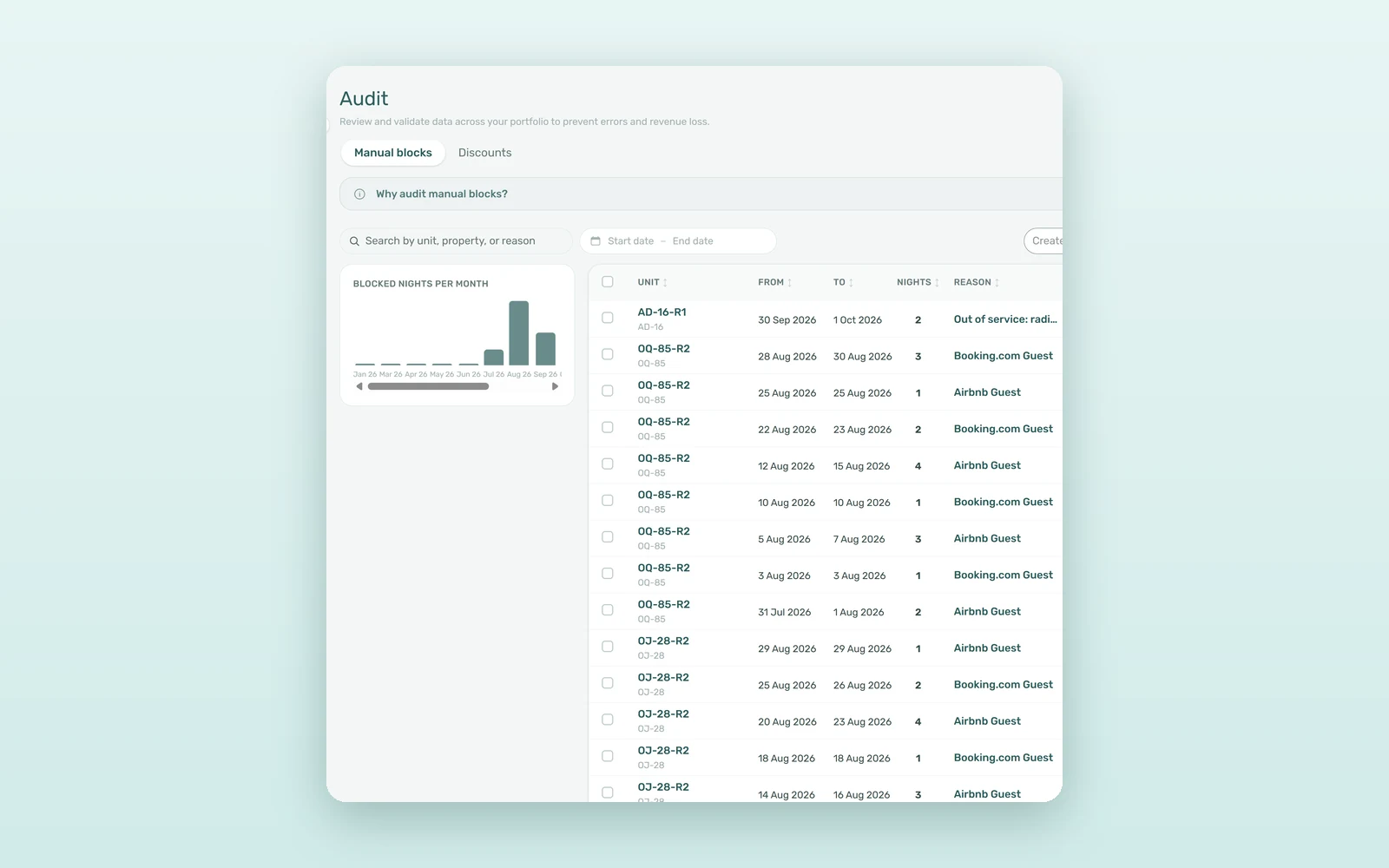
The Manual blocks tab lists every block created by hand across the portfolio - not bookings, and not blocks coming from channels. For each one you see the Unit (and its property), From, To, Nights, Reason, Created by and Created at. Search by unit, property or reason, filter by date range or by who created the block, and the Blocked nights per month chart shows whether blocked time is creeping up.
2. Fix it where you find it
Each row has Edit block and Delete block, and you can tick several rows and use Delete selected for a clean-up. Clicking a row opens the unit so you can check its calendar first. New blocks come from Create New > Reservations > Unavailability (one or several units of a property at once) or from the Calendar section of the unit editor, and both have a Reason field worth filling in every time.
How to audit rent discounts and their reasons
3. Read every discount in money and percentage
The Discounts tab opens with four cards: Discounted items, Total discounts, Avg discount rate and Avg discount / item. Below them, each discounted charge shows its Unit, Tenant, Item, payment Status, Period, Amount, Discount, Net Amount and Reason, biggest discount first. Filter by period or charge type (Rent, Admin Fee, Cleaning Fee, Exit Fee, Others) and click a row to open the booking right on that charge.
4. Give discounts with a reason attached
Discounts are given from the booking. Apply Discount on the Payment Plan or Contract Values tab offers Percentage (%) or Fixed total (€), applies it to the entire booking (deposit excluded) or to contract values only (rent, cleaning, admin), and asks for a reason before saving. For a single month's rent or one fee, Manage Discounts on that line discounts just that charge.
5. Export for sign-off
Both tabs have an Export menu with CSV and Excel - unit, dates, nights, reason and creator for blocks; booking, tenant, period, amount, discount, net amount, reason and status for discounts. Send it to whoever signs off each month, and the review leaves a paper trail.
How much revenue leakage costs a 100-room operator
An illustrative month for a coliving operator with an average rent of €650 (about €21.70 a night):
| Finding | Where you spot it | Estimated value |
|---|---|---|
| 2 rooms blocked 14 nights past their repair date | Manual blocks, sorted by To | €600 |
| 1 owner-visit block never removed (10 nights) | Search the reason for "owner" | €215 |
| 6 rent discounts of 10% with no clear reason | Discounts, filtered to Rent | €390 |
| Recovered or prevented this month | €1,205 |
At €1,000-1,500 a month, that's €12,000-18,000 a year, against a review that typically takes 20-30 minutes. Blocked nights also lower your available nights in rental analytics, so cleaning them up makes your occupancy figures honest too.
Two review habits for blocks and discounts
The Monday block review
Set the date range to this week and next, and check every row with a vague or empty reason. Anything that should already have ended is edited or deleted on the spot, and the unit goes back on sale - ideally on every channel, as our guide to multi-channel distribution explains.
The month-end discount check
Pick last month's period and start from the largest discount. Anything above your usual policy - say, more than 10% of rent - gets a second look, and the export goes to finance with the reasons attached.
How to set up a monthly revenue audit
- Open Tools > Audit and start on Manual blocks.
- Sort by To, or filter the date range, and look for blocks that run too long or have no reason.
- Edit or delete what's no longer needed, opening the unit when you want to double-check.
- Switch to Discounts, pick last month and review the largest discounts first.
- Export both tabs for sign-off and agree one rule with the team: every block and every discount gets a reason. To see it on your own portfolio, book a demo.
Frequently asked questions
What is a manual block in property management?
A manual block is a period when a unit is made unavailable by hand, not by a booking or a channel - for repairs, an owner's stay or a deep clean. In VIVIN it's created from Create New or the unit's Calendar, with an optional reason, and it reduces the unit's available nights in Analytics.
Does VIVIN calculate the revenue lost to manual blocks?
Not as a money figure. The Manual blocks tab shows the nights of each block and a Blocked nights per month chart, and Analytics removes blocked nights from available nights. To estimate the cost, multiply the blocked nights by your average nightly rent, as in the example above.
Can I discount a rent that was already invoiced?
No. Invoiced lines are left out of discounts, so the fiscal document always matches what was billed. To reduce an invoiced charge, issue a credit note on that line instead. Deposit lines can never be discounted either, whichever discount mode you choose in the booking.
Who can give discounts in VIVIN?
Anyone whose role has the Add Discounts permission, set in Settings > Users > Role Permissions. By default that's Admin, Finance and Sales, while the Operations roles don't have it. Booking-wide discounts always require a reason, which is what makes the Discounts tab useful for sign-off.
Revenue rarely disappears in one go - it leaks. The Audit page puts every block and every discount on one screen, with the reason next to it, so revenue leakage is found in a 20-minute review instead of a year-end surprise.