Property management app on your phone: push alerts, no app store

Your maintenance lead spends most of the day inside buildings, not at a desk. Tickets arrive by WhatsApp, photos of the fix go in another chat, the time spent is scribbled on paper and typed in at 18:00, if at all. Meanwhile the manager between two viewings misses the message that a tenant is locked out. A property management app only helps if it lives on the phone your team already carries, and if it tells them what changed without being opened every ten minutes.
VIVIN's Installable Mobile App is the same VIVIN your team uses on the desktop, installed on the home screen straight from the browser. It sends push notifications even when it is closed, lets every person choose which alerts they get, and turns closing a maintenance ticket into a short guided flow on site.
Why a desk-only property management tool slows field teams down
- Work recorded twice - once on site, from memory, and again at the laptop at the end of the day.
- Evidence in the wrong place - photos and supplier invoices sit in someone's gallery instead of on the ticket.
- Alerts nobody sees - a new assignment waits until someone happens to open the laptop.
At 3-5 minutes of re-typing per ticket, a team closing 200 tickets a month loses 10-17 hours to admin alone.
How to install the VIVIN property management app on your phone
Open VIVIN in the phone's browser and an Install VIVIN sheet offers to add it to the home screen, with "No App Store download needed." On Android, tap Install App. On an iPhone, follow 1. Tap Share and 2. Add to Home Screen. Maybe later hides the sheet, and the Install App banner stays in the menu for when you are ready. The installed app opens full screen, without the browser bar, and updates itself.
What your team can do from the property management app
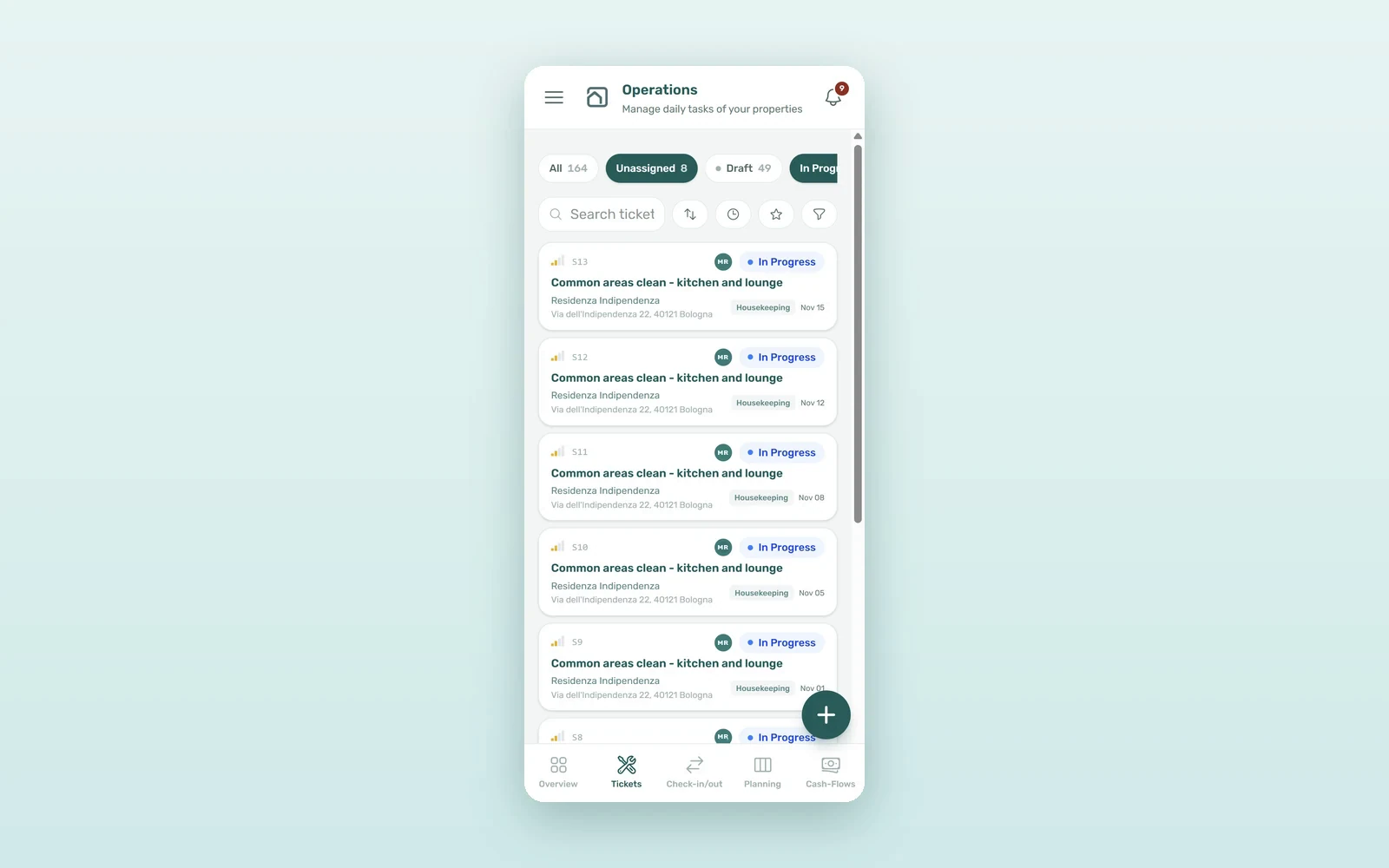
The phone menu carries the field set: Dashboard, Listings, Bookings, Operations and Inbox, plus Genius when it is on for your account, and Create New for a quick ticket, booking or cash flow. Tables turn into cards, charts are hidden on small screens, and dropdown filters move behind a Filters button so the search stays in reach. Desktop-heavy modules such as Finance or Settings are not in the phone menu, but a link to them still opens. Tenant conversations from the unified WhatsApp inbox open one column at a time, like a chat app.
How push notifications work for your team
On the phone, the bell sits in the top bar of every page, with your unread count, and on an installed app the same count can show on the app icon. The panel opens full screen with two tabs, General and Inbox.
To get alerts while VIVIN is closed, tap Turn on on the Get notified on this device card in the bell, or open Settings > Personal Settings > Push notifications and click Turn on for this device. Send a test notification confirms it works. Each phone or computer is turned on separately, the browser only asks for permission after a tap, and signing out stops pushes to that device. On an iPhone, push works in the app opened from the Home Screen, not in a Safari tab, and VIVIN shows those steps when it detects one.
How each person chooses their alerts
In Settings > Personal Settings > Your in-app notifications, each user switches categories on or off for themselves: Payments, Service requests, Scheduled bookings, Inbox messages, Operations tickets and Tenant documents. Operations tickets covers a ticket assigned to you, rescheduled or about to start. Admins can mute a category for the whole team in the In-app notifications card of Global Settings, and push follows exactly the same choices, so a technician gets tickets and a finance lead gets payments.
How to close a maintenance ticket on site
On a phone, a ticket has a guided close flow: Start runs the execution timer, then Finish work opens the Ticket close page. Time spent is filled in from the timer, the Internal note can be dictated with Dictate, and Resolution proof takes the photos of the job. Under Material purchases, answer Yes or No; with Yes, Upload / photograph invoice attaches the receipt as an expense on the ticket. Complete ticket lists anything still missing, such as Add a work photo, and changes save as you go (Saved automatically). The tickets themselves can be created for you: see how recurring and automatic tickets fill the list.
Closing tickets on the phone vs at the desk: the numbers
An illustrative month for a team of 4 field staff closing 200 tickets, with time at €20-25 per hour:
| Item | Desk only | VIVIN on the phone |
|---|---|---|
| Re-typing each closed ticket | 3-5 min | Under 1 min, done on site |
| Photos and invoices | Sent separately by chat | On the ticket as you work |
| Time spent on the job | Estimated at the end of the day | Measured by the timer |
| New assignment noticed | When someone opens the laptop | Push on the phone |
| Admin hours per month | 10-17 | 2-3 |
That is roughly €160-350 a month of field time back, and ticket records your owners can actually read.
How to roll the app out to your team
- Ask each person to open VIVIN on their phone and tap Install App (or Share > Add to Home Screen on iPhone).
- Have them open the installed app and tap Turn on in the bell, then Send a test notification.
- Agree who needs which alerts and set them in Personal Settings.
- Close the next ticket on site with Start, Finish work and Complete ticket.
Running a team of property managers across several buildings? Book a demo and try the phone flow on a real ticket.
Frequently asked questions
Is there a VIVIN app in the App Store or Google Play?
No store download is needed. VIVIN installs from the browser as a progressive web app: on Android tap Install App, on iPhone use Share and then Add to Home Screen. It opens full screen, updates itself and keeps the same account, permissions and data as the desktop version your team already uses.
Do push notifications work on iPhone?
Yes, once VIVIN is installed on the Home Screen. In a Safari tab, iPhone and iPad cannot receive web push. Open the app from the Home Screen, then turn notifications on in the bell or in Settings > Personal Settings > Push notifications, and send a test notification to check that it arrives.
Can each team member choose which notifications they get?
Yes. In Settings > Personal Settings > Your in-app notifications, each person switches categories such as Payments, Inbox messages or Operations tickets on or off for themselves. Admins can switch a category off for the whole account in Global Settings, and push notifications always follow the same choices.
The office is wherever the ticket is. With VIVIN on the home screen, push alerts that reach the right person and tickets closed on site with photos, your field team stops doing the same job twice.