WhatsApp Business API: a bot that sees photos, hears voice notes
Look at the last 20 maintenance messages your tenants sent on WhatsApp. Many have no text at all: a photo of a leaking siphon, a 40-second voice note, a video of a washing machine that won't drain. A text-only assistant replies "Could you describe the problem?", and someone on your team ends up listening to the audio, retyping it into a ticket and forwarding the photo by hand. Connecting your number through the official WhatsApp Business API changes that.
With the Official WhatsApp Business Connection, your own number runs on Meta's official WhatsApp Business Platform, with no QR code and no linked phone to keep online, and the assistant behind it sees photos and hears voice notes. It is part of VIVIN's tenant communication tools for coliving, student housing and mid-term rental operators.
Why a text-only WhatsApp chatbot frustrates tenants
- Voice notes - someone listens, works out the request and types the ticket: 3-5 minutes each
- Photos - downloaded from the chat and attached to the ticket by hand
- Back-and-forth - the bot asks the tenant to describe what the photo already shows
- A fragile line - a QR-paired session goes quiet when the linked phone does, and nobody notices until a tenant complains
On a 150-room portfolio with around 60 photo or voice messages a month, that is easily 3-5 hours of listening, retyping and forwarding, while tenants wait for a person.
How to connect the WhatsApp Business API in VIVIN
1. Connect your number from Settings
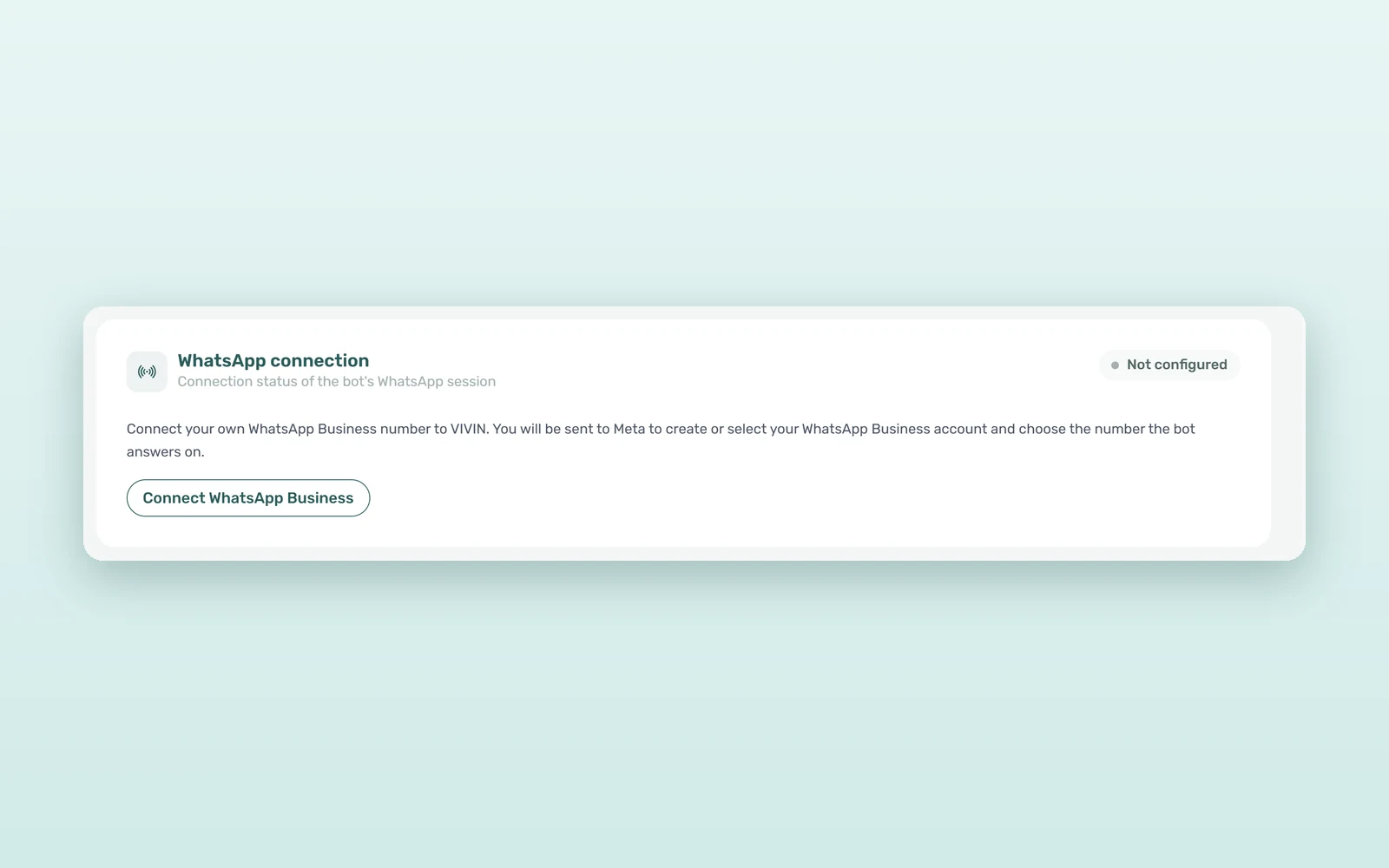
Go to Settings > ChatBot > Connections and, on the WhatsApp connection card, click Connect WhatsApp Business. VIVIN first asks "Which number should VIVIN answer on?": a new number, or the one you already use in the WhatsApp Business app. A Meta window then opens where you choose or create the business portfolio and WhatsApp Business account, confirm the number and complete any verification Meta asks for. Keep it open until it closes by itself; at that moment the connection is done.
The card then reads "Connected through the official WhatsApp Business Platform (Cloud API)", with the number and its verified business name.
2. Keep the WhatsApp Business app on your phone
If you pick the number you already use, it stays live in the WhatsApp Business app and VIVIN answers on it too. Earlier conversations stay on your phone; VIVIN shows messages from the moment you connect. Anything your team types in the app also appears in VIVIN, marked "Sent from the WhatsApp Business app".
Can a WhatsApp chatbot understand photos and voice notes?
3. The assistant sees photos
When a tenant sends a photo, the assistant receives the image with the message, so it can tell a dripping tap from a burst pipe and ask a useful follow-up instead of a generic one. When it opens a maintenance ticket, the photos, videos and files the tenant sent go onto the ticket, and the technician sees the problem before arriving.
4. The assistant hears voice notes
Voice notes are transcribed and the assistant answers what the tenant actually said. If a voice note is still being transcribed when the next message arrives, it waits instead of answering half the story.
5. Your team sees the same media
In the shared WhatsApp inbox, a voice note plays in a WhatsApp-style player with playback speed and its Transcript right under it, so a two-minute message reads in ten seconds. Photos open in place at full size, with "Open original" for the file; videos play in the thread and documents download with one click.
How your team takes over from the bot
6. Pause bot and the hand-off window
Each conversation has a Pause bot switch. In Settings > ChatBot > General you can also set a Hand-off window: the minutes the assistant stays silent after a team member replies, whether from VIVIN or from the WhatsApp Business app. The switch then explains itself, for example "Paused automatically until 14:30 because your team replied", and every new reply extends it. A window of 0 turns the automatic pause off.
7. Warnings before the line goes quiet
Because the connection is official, the card warns you when Meta lowers your number's quality rating, when the authorization is about to expire or when the number needs a Reconnect WhatsApp.
WhatsApp Business API vs a QR-paired bot: the numbers
Estimates for a 150-room portfolio with around 60 photo or voice messages a month:
| Task | Text-only, QR-paired bot | Official connection |
|---|---|---|
| Turning a voice note into a ticket | 3-5 min by hand | About 30 s to check |
| Getting a photo onto the ticket | 1-2 min by hand | Attached by the assistant |
| First useful answer to the tenant | When a person is free | Seconds |
| Bot silent because a linked phone went offline | Possible | No linked phone involved |
| Team time per month on photo and voice messages | 3-5 hours | Under 1 hour |
How tenant maintenance requests flow from WhatsApp to a ticket
The late-night voice note
A tenant records 50 seconds about water coming from under the shower tray. The assistant works from the transcript, asks for a photo of the floor, opens a maintenance ticket with both attached and confirms it has been registered. The ticket then follows your usual process (see how to handle maintenance requests at scale).
WhatsApp Business API setup checklist
- Open Settings > ChatBot > Connections.
- Click Connect WhatsApp Business and choose a new number or the one you already use in the WhatsApp Business app.
- Finish the steps in the Meta window and keep it open until it closes on its own (allow pop-ups if your browser blocks it).
- Check that the card shows your number as connected, then send a test photo and voice note from a test phone.
- Set the Hand-off window in Settings > ChatBot > General if the assistant should step back when your team replies.
Frequently asked questions
What is the WhatsApp Business API?
It is Meta's official way for businesses to send and receive WhatsApp messages through software, also known as the WhatsApp Business Platform or Cloud API. Instead of a phone paired by QR code, your number connects to VIVIN directly through Meta, so the bot keeps answering whether or not any phone is online.
Can I keep using the WhatsApp Business app on my phone?
Yes. When you connect, choose "The number I already use in the WhatsApp Business app". The number stays live on your phone and VIVIN answers on it too. Messages your team types in the app appear in VIVIN marked as sent from the app, so everyone sees the whole conversation.
What happens to my current QR-code WhatsApp line?
VIVIN tells you before you start: connecting moves the bot that answers your tenants to the official number, and the QR code connection is switched off as soon as the official one is ready. To keep the same number, pick the option for the number you already use in the WhatsApp Business app.
Does the bot stop when a team member replies?
You decide. Every conversation has a Pause bot switch, and the Hand-off window in Settings > ChatBot > General sets how many minutes the assistant stays silent after a team member replies, from VIVIN or from the WhatsApp Business app. Each new reply extends the pause, and a window of 0 turns it off.
Tenants talk in pictures and voice notes. Now your assistant looks and listens, on your own official number. Book a demo to see it on a real conversation.


