Rental analytics: track occupancy, ADR and RevPAR per property

Ask a manager with 80 units which property earned the most per available night last quarter, and you'll usually get a pause, then a promise to "pull the numbers". Without rental analytics built into your system, pulling them means exporting bookings, counting nights in a spreadsheet, subtracting the weeks a unit was blocked for repairs and deciding what to do with cancellations. For most teams that's 4-8 hours every month, and the result is a static file that's out of date by the time it reaches the owner.
VIVIN's Analytics module calculates occupancy rate, ADR, RevPAR, revenue and maintenance from the bookings, charges and blocks already in your account, by property, unit or owner, month by month. It's part of VIVIN's sales and analytics tools for coliving, student housing and mid-term rental operators.
Why spreadsheet reporting hides problems
- Hours, every month - exports and formulas before anyone even reads the result.
- Inconsistent definitions - one sheet counts blocked nights as available, another doesn't. Two reports, two RevPARs.
- Averages that hide problems - a portfolio at 88% occupancy can include a building at 70% that nobody has noticed.
- No view ahead - spreadsheets look backwards, while the decisions that matter are about the next quarter.
How rental analytics works in VIVIN
Open Analytics from the Business section of the sidebar. The page has six tabs: Overview, Revenue, Occupancy, ADR, RevPAR and Maintenance. Overview shows the five charts side by side; each other tab goes deep on one metric.
1. Five metrics, one definition each
Every metric is computed the same way for every unit, and each tab carries a "How it works" note that spells out the rule:
- Occupancy - occupied nights divided by available nights, with manually blocked nights removed from the available ones.
- Revenue - every charge billed in the month except deposits, after discounts and credit notes.
- ADR - revenue divided by occupied nights: what an occupied night is really worth.
- RevPAR - revenue divided by available nights: occupancy and price in a single figure.
- Maintenance - tickets created per month, for accounts that use Operations.
2. Monthly trend, including the months ahead
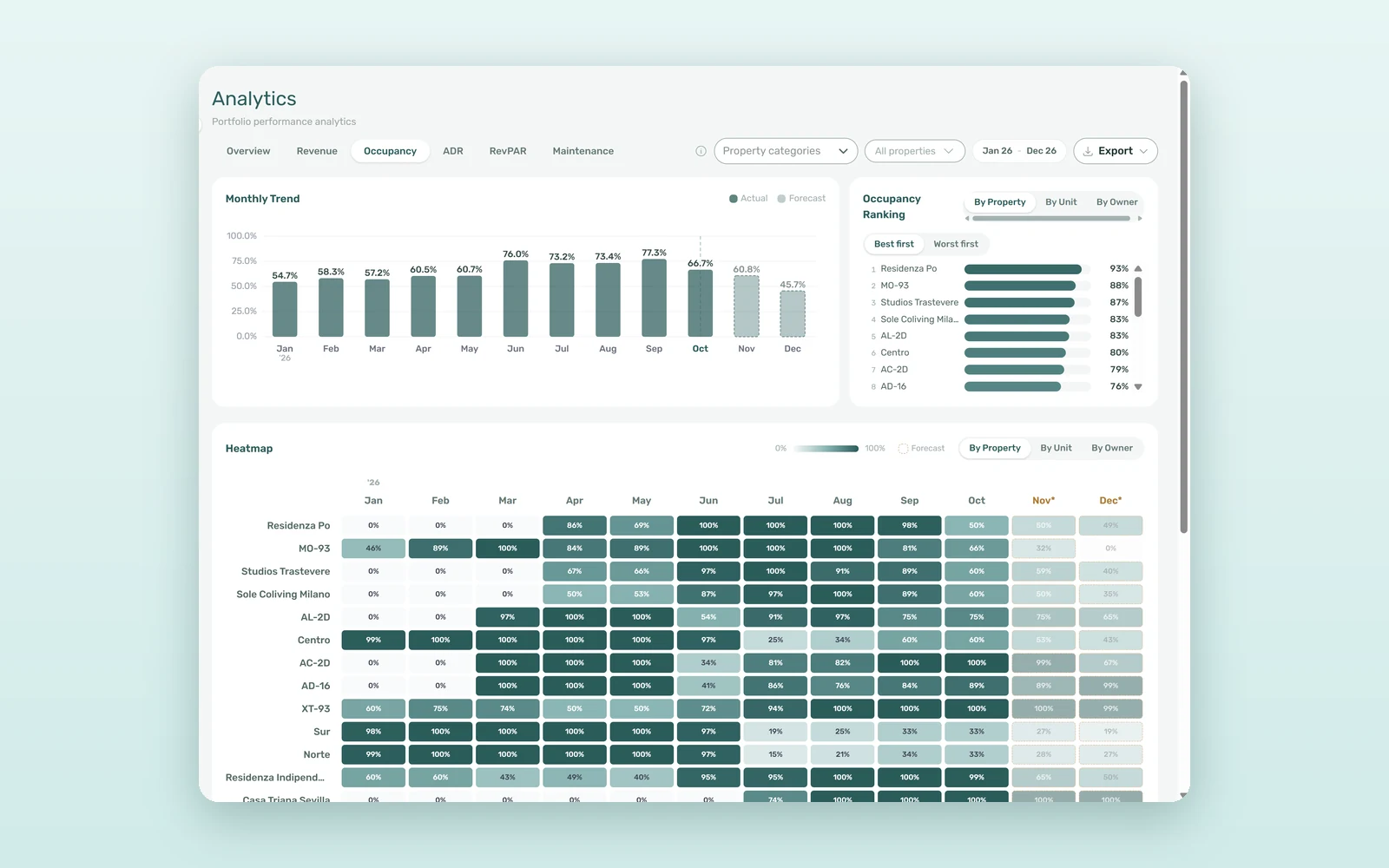
Each metric tab opens with a Monthly Trend chart, and every bar prints its value. Months after the current one are labelled Forecast and drawn as dimmed bars with a dashed outline, based on bookings already on the books. By default the range runs from nine months back to two months ahead, and the 6M, 12M and YTD presets change it in one click.
3. The heatmap: seasonality at a glance
The Heatmap puts properties (or units, or owners) in rows and months in columns, with the value printed in every cell. Click a month header to sort by that month, hover a cell to see occupancy, revenue, ADR and RevPAR together, and scroll as far as you like: the month row stays pinned at the top. Forecast months carry an asterisk.
4. Best and worst, ranked
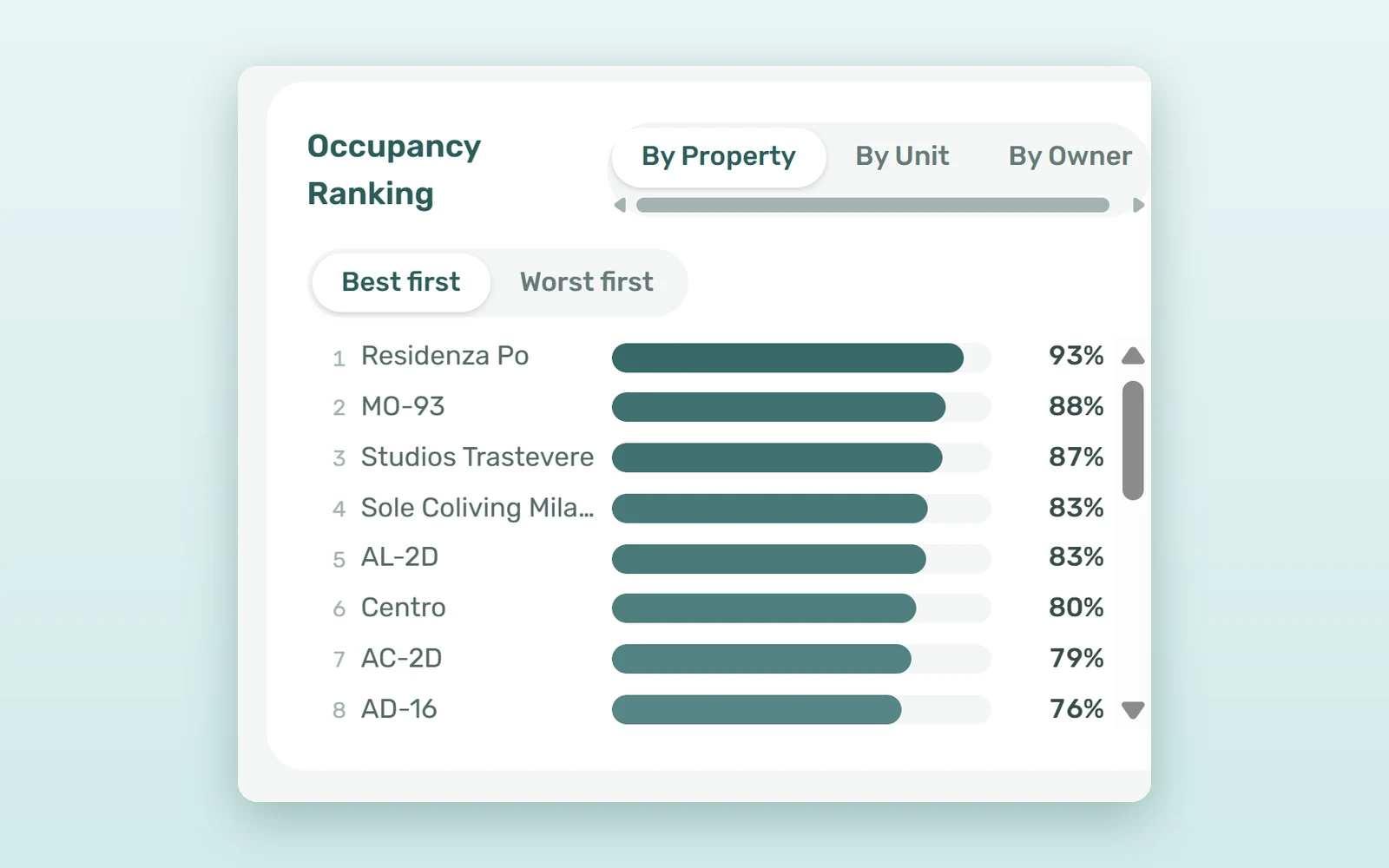
Beside the heatmap, the ranking card (Occupancy Ranking, Revenue Ranking and so on) lists the top 20 rows. Switch between Best first and Worst first, and group By Property, By Unit or By Owner. Rankings use completed months only, so a half-finished month never makes a property look worse than it is, and for revenue, ADR and RevPAR a property is ranked by the average of its units.
5. Filter it, then export it
Narrow the view with All properties and, if you've set up property categories, with Property categories - for example to compare student residences with coliving buildings. Export downloads the data as CSV or Excel, following your date range and filters.
What is RevPAR, and why does it beat occupancy rate alone?
RevPAR is revenue per available night, and it's the clearest of the KPIs every property manager should track because it combines price and occupancy. Take two 20-room properties over a 30-day month, with 600 available nights each:
| Metric | Property A | Property B |
|---|---|---|
| Occupied nights | 552 | 468 |
| Occupancy rate | 92% | 78% |
| Revenue | €13,248 | €14,040 |
| ADR | €24.00 | €30.00 |
| RevPAR | €22.08 | €23.40 |
Ranked by occupancy, Property A looks like the winner. Ranked by RevPAR, Property B earns €792 more a month - about €9,500 a year - with 14 points less occupancy. On the RevPAR tab, that shows up in the ranking without a single formula, and you get back the 4-8 hours of monthly reporting, roughly 50-100 hours a year.
Three questions rental analytics answers in a minute
Which building is dragging the portfolio down?
Open Occupancy, group By Property and switch the ranking to Worst first. The bottom three rows are your agenda for the week.
Is this summer dip normal?
Pick 12M and read the heatmap across. If every property dips in August, it's seasonality; if only one does, look at that property's price, listing or condition.
Are some units priced too low?
Group By Unit on the ADR tab. Units with high occupancy and an ADR well below their neighbours are the first candidates for a price review, and our guide to dynamic pricing and rental yield explains what to do next.
How to roll out rental analytics to your team
- Check that your role has Module Analytics in Settings > Users > Role Permissions. Users linked to an owner only see that owner's properties.
- Open Analytics and start on Overview to see the five charts side by side.
- Pick a range (6M, 12M or YTD) and, if needed, filter by property or property category.
- Open a metric tab, group by property and read the heatmap and the ranking together.
- Switch to Worst first and choose the three rows you'll act on this month - or book a demo to see it on your own data.
Frequently asked questions
How is occupancy rate calculated in VIVIN?
Occupancy is occupied nights divided by available nights in the period. Available nights only count days the unit was active, minus nights it was manually blocked. Occupied nights come from non-cancelled bookings, using check-in and check-out or contract dates, as set in the Occupancy Rate - Preferred Dates option.
What is the difference between ADR and RevPAR?
ADR, the average daily rate, is revenue divided by occupied nights: what an occupied night earns. RevPAR, revenue per available night, divides the same revenue by all available nights, so it falls when units sit empty. A property can show a high ADR and a weak RevPAR when occupancy is low.
Does revenue in Analytics include deposits?
No. Revenue counts every charge billed in the month except security deposits - rent, admin, cleaning and exit fees and other charges - after discounts and credit notes. On a cancelled booking, only the money the tenant paid and didn't get back counts, so refunds never inflate the figure you report.
Can I export rental analytics to Excel?
Yes. The Export button downloads CSV or Excel with one total row per month and one row per unit per month, covering available and occupied nights, occupancy rate, revenue, ADR, RevPAR and, if you use Operations, tickets. The file follows your date range, property and category filters.
A number you have to build is a number you only check once a month. With rental analytics in VIVIN, occupancy, ADR and RevPAR come straight from the bookings you manage every day, so they're there whenever a decision is on the table.


