Property maintenance software: 4 ways tickets create themselves

A 120-room coliving easily opens 250-350 tickets a month. Look closely and more than half of them are predictable: the weekly clean of the common areas, the monthly boiler check, room preparation before every check-in, the inspection after every check-out, the cleaning a tenant ordered in the portal. Typing each one by hand takes 2-3 minutes, and the one that gets forgotten is the one a tenant complains about. Good property maintenance software should write the predictable tickets for you and leave your team the real repairs.
VIVIN's Automatic and Recurring Tickets do exactly that inside Operations > Tickets of the maintenance module. We covered the basics of a ticket system in managing maintenance requests at scale; this post is about the tickets nobody should have to type, and about handling dozens of them in one go.
Why typing predictable tickets by hand does not scale
- Hours of copy and paste - 150-200 predictable tickets at 2-3 minutes each is 6-9 hours a month.
- Gaps nobody notices - a recurring job missed in one building only shows up when the tenant writes in.
- Inconsistent tickets - each person types a different title, category and priority for the same job.
How property maintenance software can create tickets for you
1. Recurring tickets, scheduled in one go
In New ticket, turn on Recurring event, choose a Frequency (Weekly, Every 2 weeks or Monthly), the From and To dates, and the Week days or Days of month. Before you save, VIVIN tells you what it will do, for example "Will create 12 tickets", and months without the chosen day are skipped. Each occurrence carries a Recurring chip. Change the property, unit or time of one occurrence and Apply to following copies it to the later ones; cancelling asks whether it is Only this ticket or the following occurrences too.
2. Check-in and check-out tickets, set once in Settings
In Settings > Global Settings > Automatic tickets, you define the check-in and check-out tickets for every property, new ones included. Each ticket can be limited by Tenant categories, Listing categories, Properties and Electronic lock, and where it applies it replaces the property's own ticket of the same category. A property can still add its own in its Maintenances section with Add check-in ticket or Add check-out ticket, up to 10 per event, and Assign to the booking's check-in responsible. When a booking's dates move, its automatic tickets move with it.
3. Tickets from the services tenants order
In Settings > Services, a service's Automatic tickets tab decides what work it creates: At check-in, During the stay or At check-out, with a Frequency for recurring work. The ticket is created the moment a tenant contracts the service in the portal, and the service, who ordered it and the stay dates are added to it automatically.
4. Ticket templates for the jobs you still create by hand
In Settings > Categories > Ticket templates, click New template and fill in the Template name, Title, Priority, Description, Category and Responsible. In Add ticket, the Template list then pre-fills all of them; property, unit and date are chosen on each ticket. Under Tickets in the same tab, each category can also have a default responsible.
How to change or complete many tickets at once
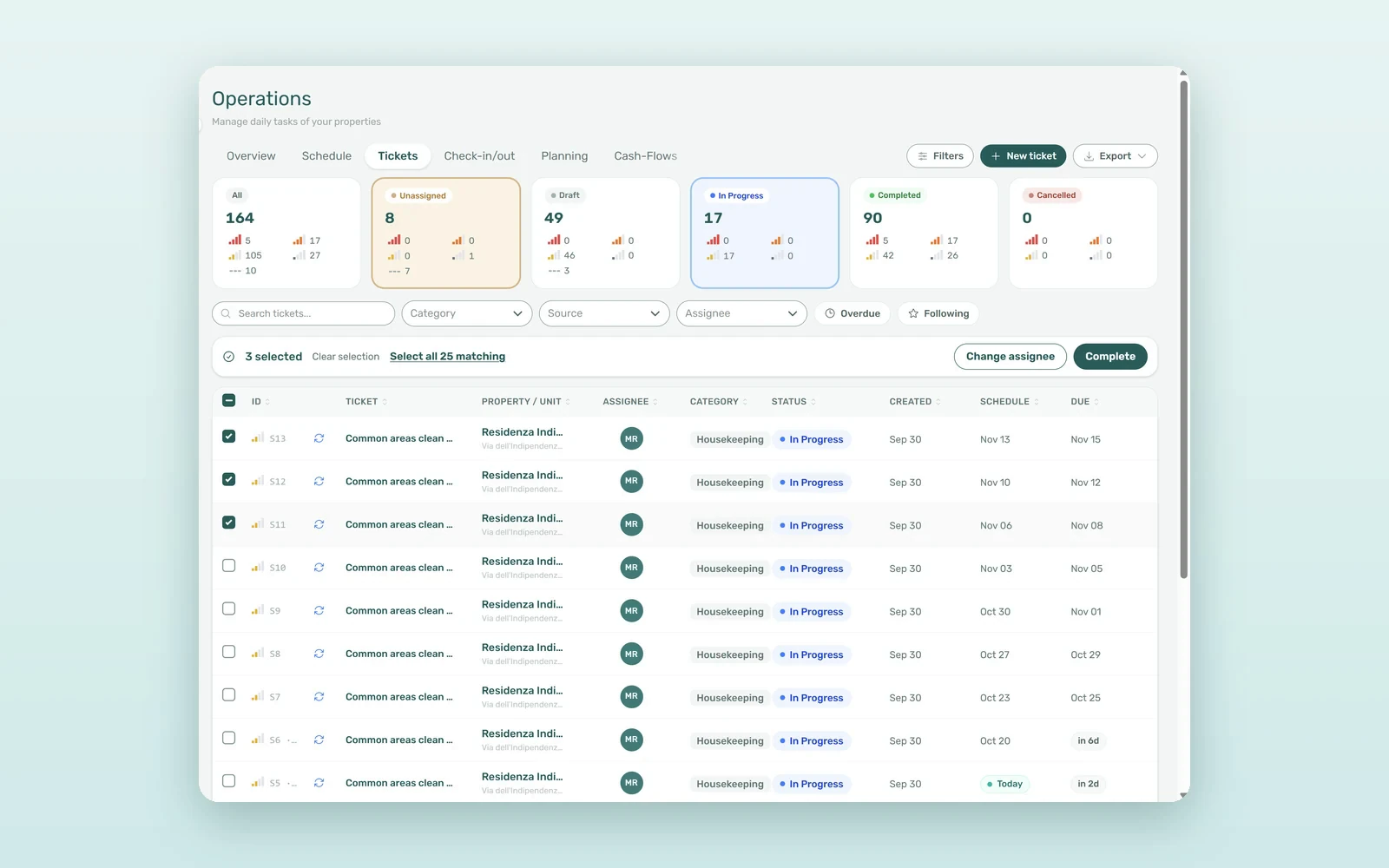
On a computer, tick the rows you need, or Select all tickets in view and then every ticket that matches your filters. The Bulk actions bar offers Change assignee, which sends the usual assignment email for each ticket, and Complete, which skips tickets already closed and asks first when some are scheduled after today. One action takes up to 500 tickets, and Clear selection drops the ticks. When a technician is off sick, moving their week of work to a colleague takes one action instead of thirty.
How to keep track of tickets: followers, alerts and resolution time
- Follow - click it in a ticket's header to get an email when its status, responsible, date or priority changes, or files are added. With the Manage Followers permission you can add colleagues as Followers, and the Following filter shows only the tickets you follow.
- Changes to tickets assigned to me - a personal alert, in the app and by email, when someone else changes a ticket you are responsible for. Changes made close together arrive as one.
- Resolution time - a completed ticket shows how long it took from creation to completion, and the export adds Resolution time (h).
- Search and sort - Search tickets... also matches the tenant's name and the internal note, and the list remembers each user's last sort on any device.
Property maintenance software vs hand-typed tickets: the numbers
An illustrative month for a 120-room operator with 300 tickets, 180 of them predictable, with time at €20-25 per hour:
| Item | Typed by hand | VIVIN automatic tickets |
|---|---|---|
| Creating 180 predictable tickets | 6-9 hours | About 1 hour of review |
| Reassigning a week of work (30 tickets) | 20-30 minutes | One bulk action |
| Same job, same title and category | Depends on who types it | From the rule or the template |
| Check-in prep after a date change | Moved by hand, if someone notices | Moves with the booking |
| Admin hours per month | 7-10 | 1-2 |
That is roughly €120-200 a month of coordination time back, and a ticket list your team can trust.
How to set up automatic tickets in VIVIN
- Add your check-in and check-out tickets in Settings > Global Settings > Automatic tickets.
- Open each service in Settings > Services that needs work done and fill in its Automatic tickets tab.
- Create recurring tickets for the weekly and monthly jobs with Recurring event.
- Write Ticket templates for the jobs you still open by hand, and set a default responsible per category.
- Have the field team close tickets on site with the VIVIN app on their phones.
Book a demo and we will walk through your recurring jobs and check-in routine on a real property.
Frequently asked questions
How do recurring maintenance tickets work?
In New ticket, turn on Recurring event, choose Weekly, Every 2 weeks or Monthly, a date range and the weekdays or days of the month. VIVIN shows how many tickets it will create before you save and creates them all at once, and a later change to one occurrence can be applied to the following ones.
Can tickets be created automatically for every check-in and check-out?
Yes. In Settings > Global Settings > Automatic tickets you define check-in and check-out tickets once for every property, including new ones, and narrow them by property, tenant or listing category and electronic lock. Each booking then gets its tickets, and they move when the booking's dates change.
What is the difference between a ticket template and an automatic ticket?
An automatic ticket is created by VIVIN when something happens, such as a check-in or a service order. A template creates nothing on its own: it pre-fills the Add ticket form with a title, description, category, priority and responsible when someone on your team opens a ticket by hand.
The best ticket is the one nobody had to type. Let the routine write itself, handle the exceptions in bulk, and keep your team's time for the repairs that really need a person.