ChatGPT for property management: also Claude and Gemini via MCP
Your team already has an AI chat open all day - to write emails, summarize contracts, plan the week. But the moment someone needs a number from the portfolio, they leave it: log into VIVIN, filter, export a CSV, paste it back into the chat, ask the question. It takes 5-15 minutes each time, and every export leaves another copy of tenant data in a downloads folder.
The MCP Connection removes that round trip and makes ChatGPT for property management - or Claude, or Gemini - part of the daily routine. MCP (Model Context Protocol) is the open standard that AI assistants use to connect to other tools. With it, your AI reads your VIVIN account directly - with your sign-in, within the permissions you set, and nothing more. It is part of VIVIN's AI and automation tools.
Why copy-pasting exports into ChatGPT doesn't scale
- Time - each answer starts with an export and ends with a paste
- Stale data - the CSV pasted on Monday is still in the chat on Friday, and still wrong
- Loose copies - exports pile up in downloads folders and shared drives
- No permissions - once a file is pasted, nothing limits what it shows
If a team runs 15 of these lookups a week at around 15 minutes each, that is roughly 16 hours a month of exporting, pasting and cleaning up. An AI that reads your system directly is fast becoming part of the essential technology stack for modern property management.
How to connect ChatGPT, Claude or Gemini to your property management software
1. Pick your AI client
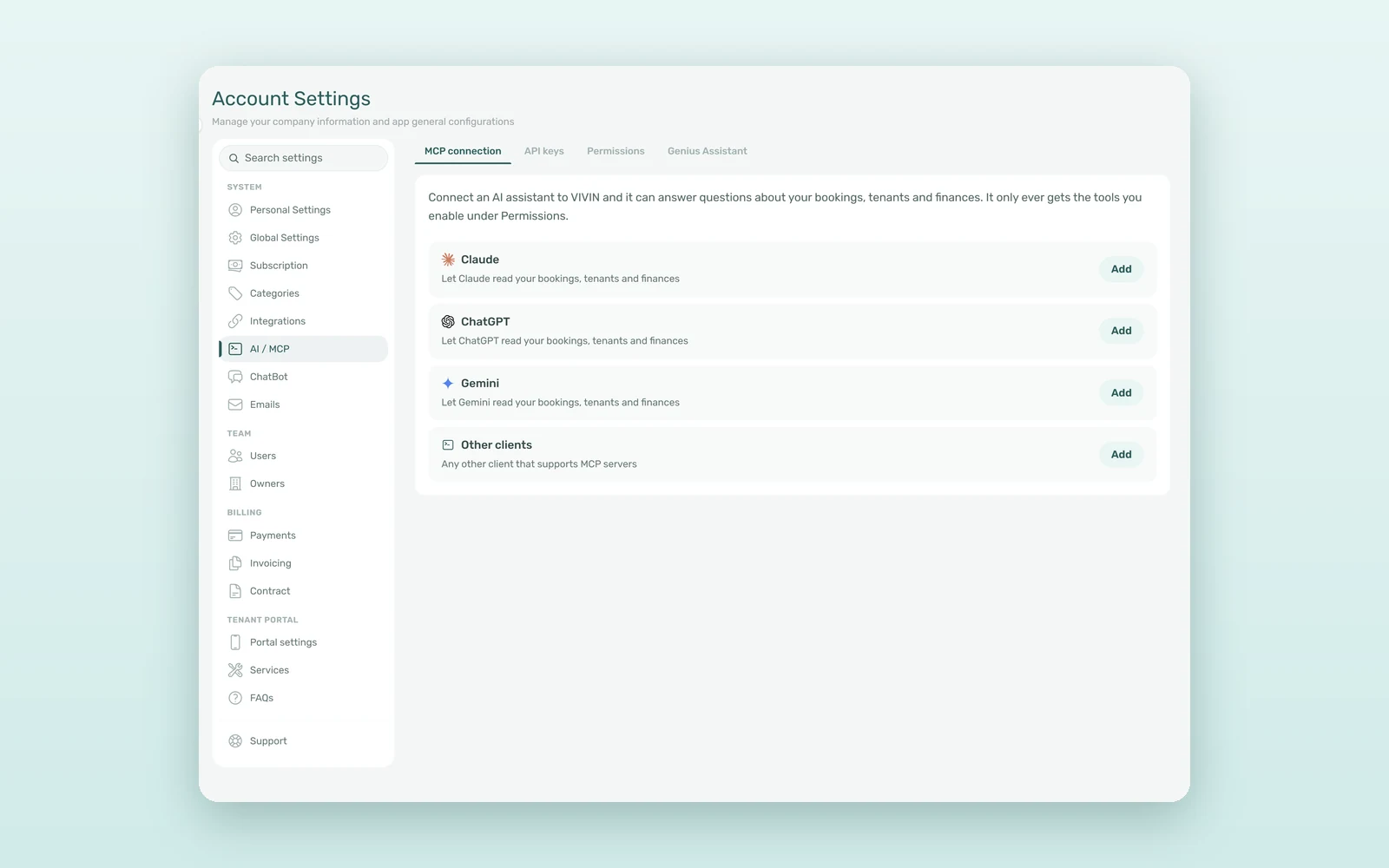
Go to Settings > AI / MCP and open MCP connection. There is a card for Claude, ChatGPT, Gemini and Other clients - any other assistant that supports MCP servers. Click Add and a step-by-step guide opens, with your connection URL, a copy button and a shortcut that opens the right page of your AI client.
2. Sign in with your VIVIN account
The connection uses OAuth, the same kind of sign-in you use for "Log in with Google". When you add VIVIN, your AI client opens a VIVIN page that asks you to sign in, then shows exactly which tools the AI will get, grouped by area and marked Edit or Read-only. You click Authorize, and the AI is connected as you.
3. Ask in your own chat
From then on you ask where you already work: "Which bookings check out next week?", "Summarize open tickets by property", "Give me this month's transactions as a CSV". The AI picks the right VIVIN tools, reads live data and answers.
4. Permissions per area
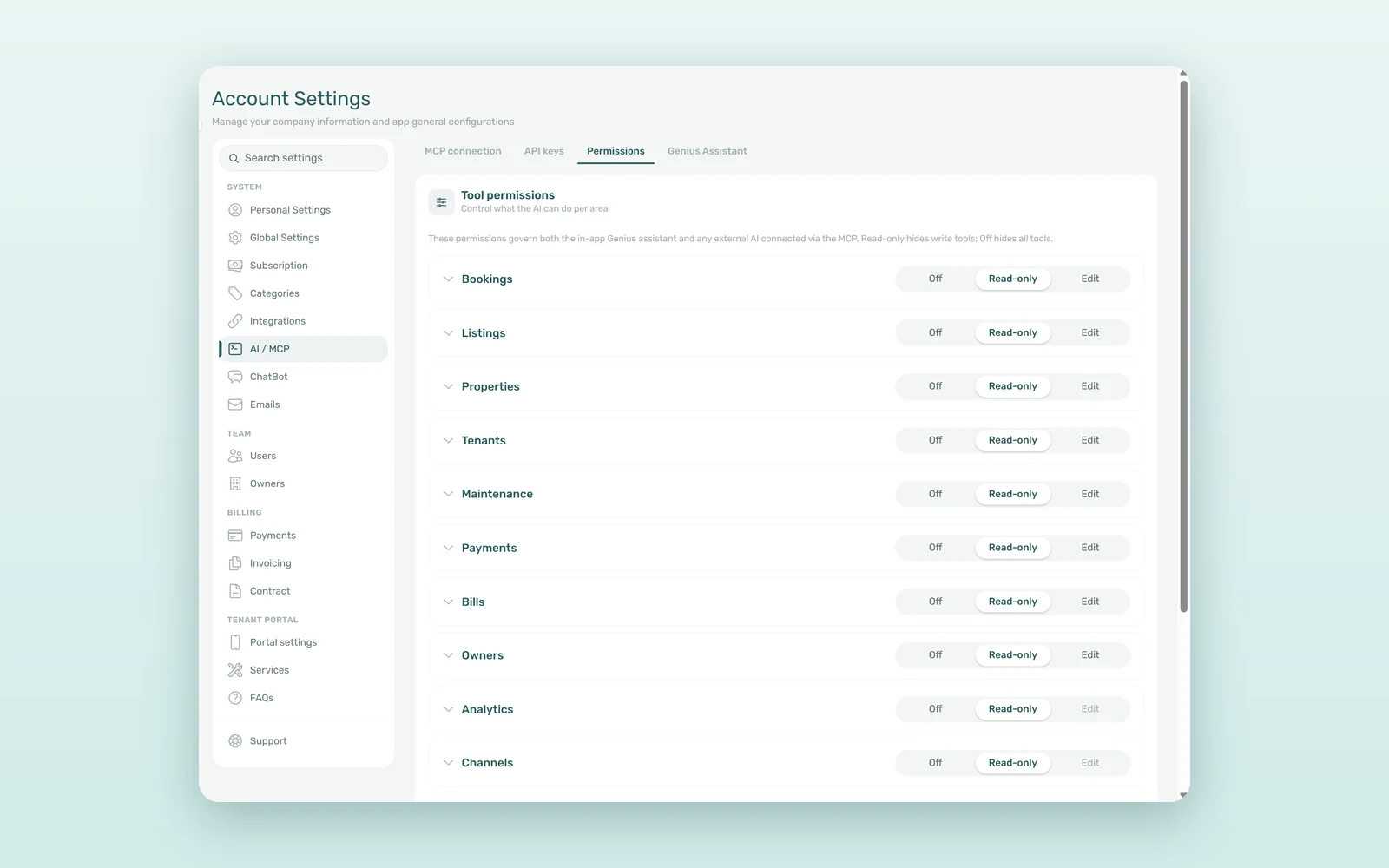
Under Settings > AI / MCP > Permissions, an admin sets each area to Off, Read-only or Edit: Bookings, Listings, Properties, Tenants, Maintenance, Payments, Bills, Owners, Analytics, Channels, Communication, Support, Team and Settings. Every area starts as Read-only. The level is always capped by the user's role: if a role cannot see payments in VIVIN, the AI cannot see them for that user either. Team members who don't manage these settings see My permissions, a plain list of what their AI can do in each area.
5. Changes with care
Where an area is set to Edit, the AI can also make changes, such as creating a booking or a ticket. Access is short-lived and checked again each time the connection refreshes, so when an admin switches an area off or removes a user's AI / MCP permission, the AI loses that access within minutes.
What ChatGPT for property management can do with VIVIN's MCP server
The connection exposes close to 200 VIVIN tools, and the AI only ever gets the ones your permissions allow:
- Read tools - bookings and vacancies, calendars and pricing, tenants, tickets, payments, deposits, bills, owners, revenue, debt, channel status and messages
- Export tools - one for each export you can run in the VIVIN app, returned as CSV with up to 20,000 rows
- Write tools - in areas such as Bookings, Listings, Maintenance and Settings, available only where the area is set to Edit
The same permissions also govern Genius, the AI assistant inside VIVIN, so you manage one set of rules for every AI that touches your data.
ChatGPT for property management vs export and paste: the numbers
An illustrative estimate for a team that runs about 15 data lookups a week:
| Task | Export and paste | Connected AI |
|---|---|---|
| Occupancy figures for a monthly report | 10-15 min | 1-2 min |
| Open tickets by property for the ops meeting | 20-30 min | 2-3 min |
| Transactions CSV for the accountant | 5-10 min | About 1 min |
| Who can see what | Whoever has the file | Per area, per role |
| 15 lookups a week, per month | ~16 hours | ~2 hours |
That is around 14 hours a month back, with fewer loose files and every answer drawn from current data.
How coliving and mid-term rental teams use their own AI
The board report in Claude
A finance lead asks Claude for occupancy, revenue and open debt by property for the last quarter, then has it draft the commentary. The numbers come from VIVIN; the writing is done where she already writes.
The accountant's file in ChatGPT
Instead of exporting from Finance every month, an office manager asks ChatGPT for the month's transactions as a CSV and forwards it.
A Google Workspace team with Gemini
A team that lives in Google Workspace connects Gemini as a custom app and asks about move-ins for the week between emails.
How to set up the MCP connection in 5 steps
- Make sure your role has the AI / MCP permission (Settings > Users > Role Permissions). Admins have it by default.
- In Settings > AI / MCP > Permissions, set each area to Off, Read-only or Edit and click Save changes.
- In MCP connection, click Add on your AI client's card and follow the steps.
- Sign in with your VIVIN account and click Authorize.
- Ask your first question from your own AI chat.
Not on VIVIN yet? Book a demo and see the MCP connection on a live account.
Frequently asked questions
Can I use ChatGPT for property management with my own data?
Yes. With VIVIN's MCP connection, ChatGPT, Claude or Gemini sign in with your VIVIN account over OAuth and read live account data through close to 200 tools. The AI only gets the areas an admin allows, never more than your role, and no CSV exports or pasted files are needed.
Is it safe to connect an AI assistant to VIVIN?
Access is limited per area (Off, Read-only or Edit) and capped by each user's role, and every area starts as Read-only. Nobody pastes passwords or keys into the AI client, access tokens are short-lived, and switching an area off or removing a user's AI / MCP permission cuts access within minutes.
Can ChatGPT change data in VIVIN?
Only in areas an admin has set to Edit, such as Bookings or Maintenance. Write tools are marked as changes, and their instructions tell the AI to describe the change and wait for your confirmation. Analytics, Channels and Communication have no write tools, so the AI can only read them.
Your AI, your data, your rules. Keep working in the assistant your team already likes, and let VIVIN decide, area by area, what it is allowed to see and do.