AI assistant for property management: Genius answers with links

"How many rooms are free next month?" sounds like a simple question. In a 150-room coliving or student housing portfolio, answering it means opening Bookings, filtering by date, checking the calendar for gaps and exporting to a spreadsheet to count. Ten to fifteen minutes later you have a number - and then an owner asks about revenue, sales asks who is moving in, and finance wants to know who is behind on rent.
Each question is small. Together they take an hour or more a day - exactly the work an AI assistant for property management should take off your plate.
Genius is the AI assistant built into VIVIN's property management software, part of its AI and automation tools. You ask in plain words, it reads your live account data and answers in under a minute, with a link to every property, unit, booking and ticket it mentions.
Why answering portfolio questions by hand costs hours
Most portfolio questions are not hard. They are just spread across screens:
- Several screens per answer - occupancy lives in one place, payments in another, tickets in a third
- Exports and spreadsheets - anything that needs a total or a comparison ends up in Excel
- Numbers that age - a vacancy count copied on Monday is wrong by Wednesday
- Knowledge in a few heads - only some people on the team know where to look
If your team answers 6 questions like these a day at around 10 minutes each, that is roughly 20 hours a month.
How does an AI assistant for property management work?
1. Ask in plain words
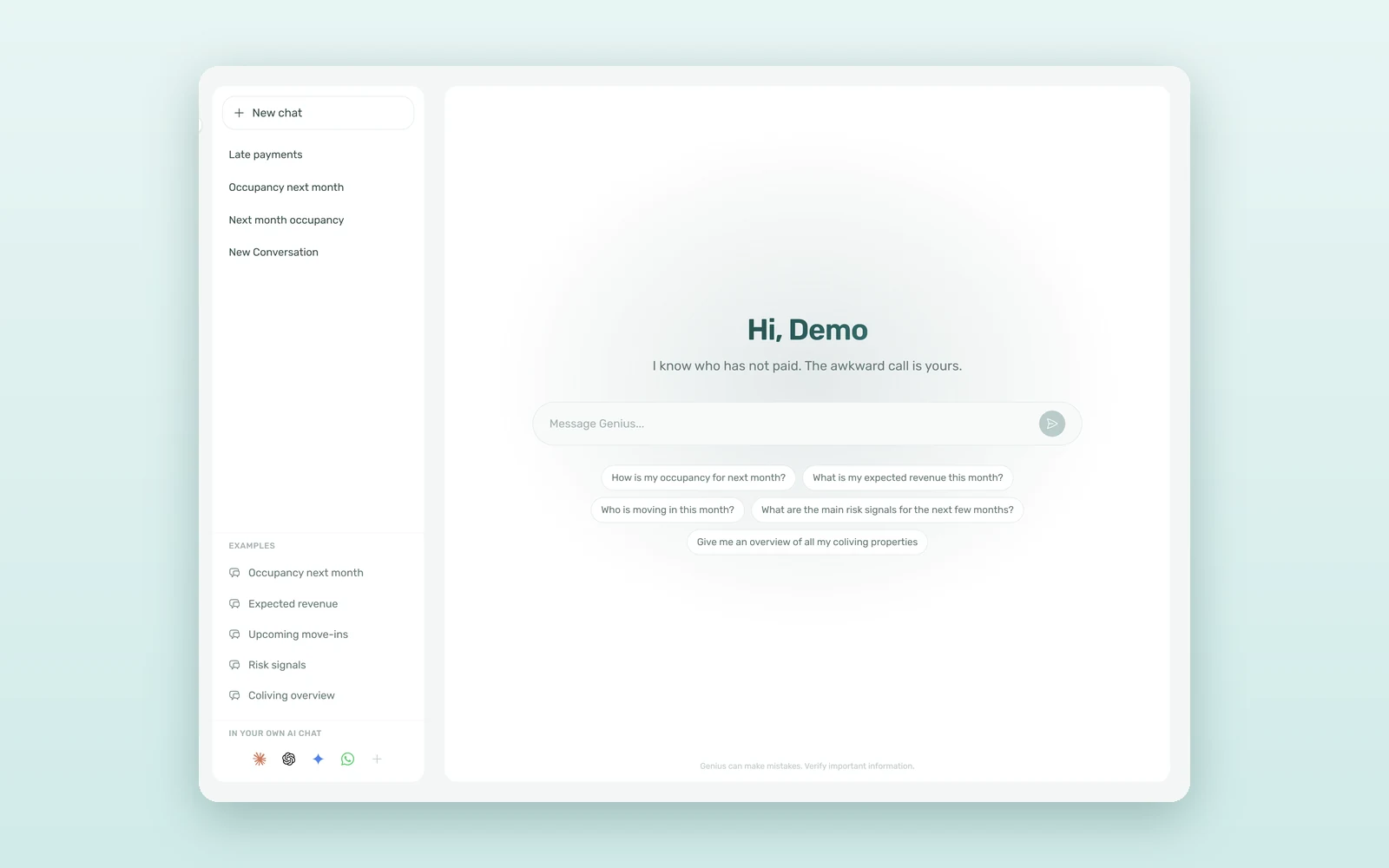
Open Tools > Genius in the sidebar and type into Message Genius.... If you're not sure where to start, the start screen offers ready-made questions such as "How is my occupancy for next month?", "Who is moving in this month?" or "What are the main risk signals for the next few months?", and the Examples list shows complete sample conversations.
2. Answers from your live data
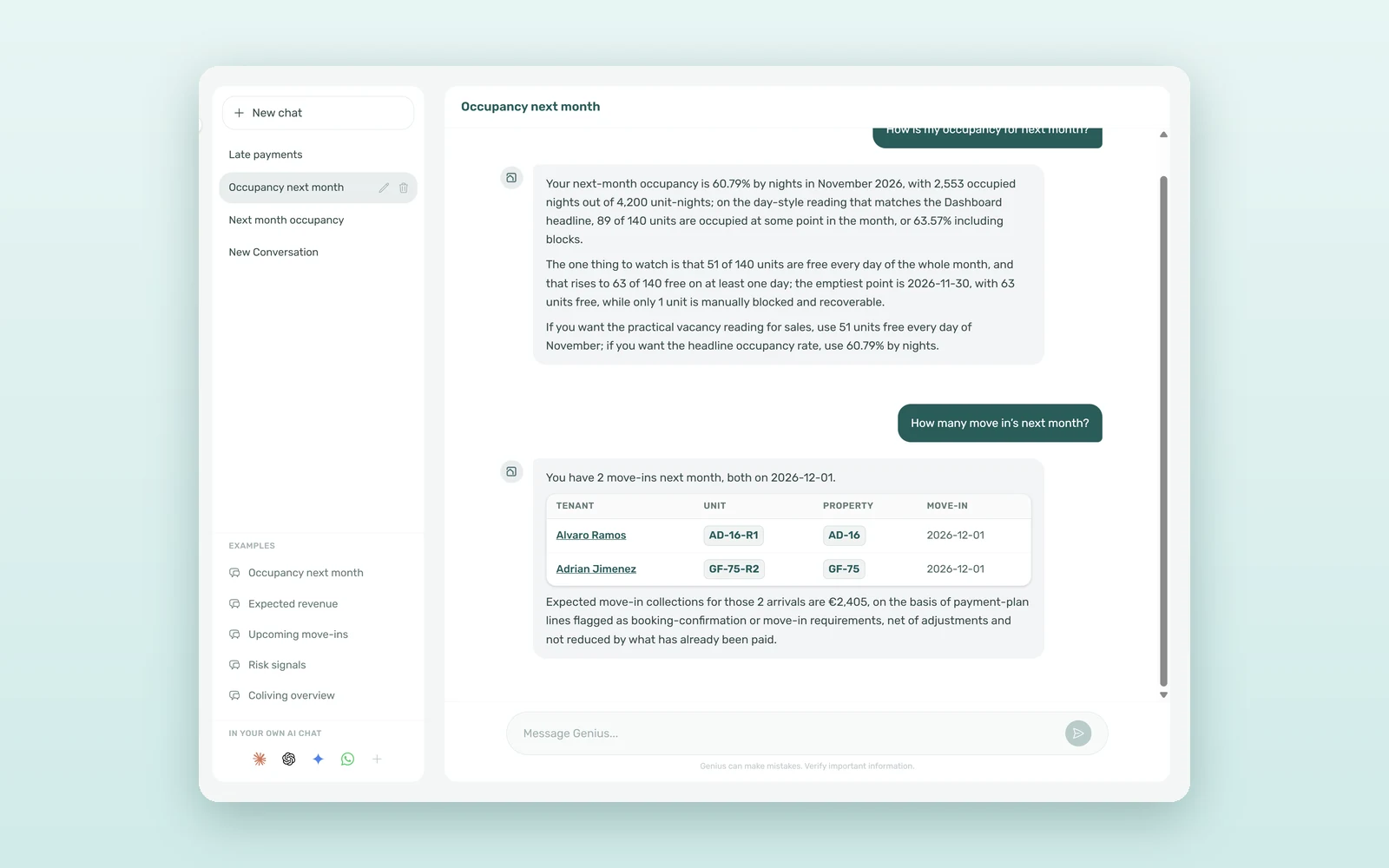
Genius reads the same data you see in VIVIN: bookings and vacancies, units and calendars, tenants, tickets, payments and deposits, bills, owners, revenue, debt and channel status. While it works, it shows which data it is reading. For a question like "Who is moving in this month and what do they still owe?" it looks up several things in one reply - bookings, payment plans and outstanding amounts - and puts them together. Ask for a chart or a table and you get one.
3. Every record is a link
When Genius names a property, unit, booking or ticket that it looked up, the name is clickable. Properties, units and bookings open in a side panel, so you can check the detail without leaving the conversation; tickets open in Operations. If a name is not a link, Genius did not look that record up - a simple way to tell data from wording.
4. How-to answers from the docs
Genius also answers questions about VIVIN itself, like "How do I set up a payment plan?". It reads the public user guide and ends the answer with the docs.vivin.app page it used.
5. Changes only after you confirm
Where you allow it, Genius can also act: create a booking or a maintenance ticket, register a manual payment, add a cash flow, block dates in a calendar and more. A change never runs in the same message in which you ask for it. Genius first spells out exactly what it will change and waits for your confirmation; only then does it go ahead. A change made by Genius behaves like one made in the app, automatic emails included.
How to control what the AI can see and change
In Settings > AI / MCP > Permissions, an admin sets each area - Bookings, Listings, Tenants, Payments, Maintenance and the rest - to Off, Read-only or Edit. Every area starts as Read-only, so Genius cannot change anything until you choose Edit. Genius also never goes beyond the user's role: if a role cannot see an area in VIVIN, Genius cannot see it for that user either. Access to Genius itself is a role permission (AI / MCP), given to Admins by default. The same rules apply when you connect ChatGPT, Claude or Gemini to your VIVIN account.
AI assistant for property management vs manual lookups: the numbers
An illustrative estimate of the time per question for a team managing around 150 rooms:
| Question | By hand | With Genius |
|---|---|---|
| Which units are vacant next month? | 10-15 min | Under 1 min |
| Who is moving in this month and what do they still owe? | 15-20 min | Under 1 min |
| What is the expected revenue this month? | 15-30 min | Under 1 min |
| Which tickets are still open at this property? | 5-10 min | Under 1 min |
| How do I set this up in VIVIN? | Search or ask support | Answer + docs link |
| 6 questions a day, per month | ~20 hours | ~2-3 hours |
Even if you double-check every key number by clicking through, the time shifts from searching to reading - around 17 hours a month back for the team in this example.
How coliving and student housing teams use Genius
The Monday check
Ask for the main risk signals for the next few months. Genius pulls vacancies, open debt and tickets together into a short list of what needs attention - the same signals behind the KPIs property managers should track: a room freeing up with nothing booked behind it, a tenant behind on rent before a renewal, a repair that keeps coming back.
The owner call
Before calling an owner, ask for their properties with occupancy, this month's revenue and open tickets. If the owner wants detail, click the property and it opens right there.
How to get started with Genius
- Check that your role has the AI / MCP permission (Settings > Users > Role Permissions).
- In Settings > AI / MCP > Permissions, set each area to Off, Read-only or Edit.
- Open Tools > Genius and pick a starter question or type your own.
- Click any linked record to check the detail behind the answer.
- When you're ready for actions, set the area to Edit and confirm each change when Genius asks.
Not using VIVIN yet? Book a demo and ask Genius about a real portfolio.
Frequently asked questions
What is an AI assistant for property management?
It is an assistant that answers questions about your portfolio in plain language, using your own live data. In VIVIN, Genius reads bookings, vacancies, payments, debt, tickets and owners, links every record it names and, where you allow it, makes changes after you confirm them.
Can Genius change data in my account?
Only where an admin has set the area to Edit in Settings > AI / MCP > Permissions; every area starts as Read-only. Even then, Genius never writes in the same message you ask: it first describes the change and waits for your confirmation, and the change behaves like one made in the app.
Is Genius always right?
No AI is. Genius shows a reminder that it can make mistakes, and it is built to make checking easy: answers come from your live account data, every record it looked up is a clickable link, and how-to answers end with the docs.vivin.app page they are based on.
The answers are already in your data. Genius lets you ask for them the way you'd ask a colleague - and shows you exactly where each one comes from.


